
159 lines
5.2 KiB
Markdown
159 lines
5.2 KiB
Markdown
# Abiotic Factor Server Manager - Quick Summary
|
|
|
|
## Overview
|
|
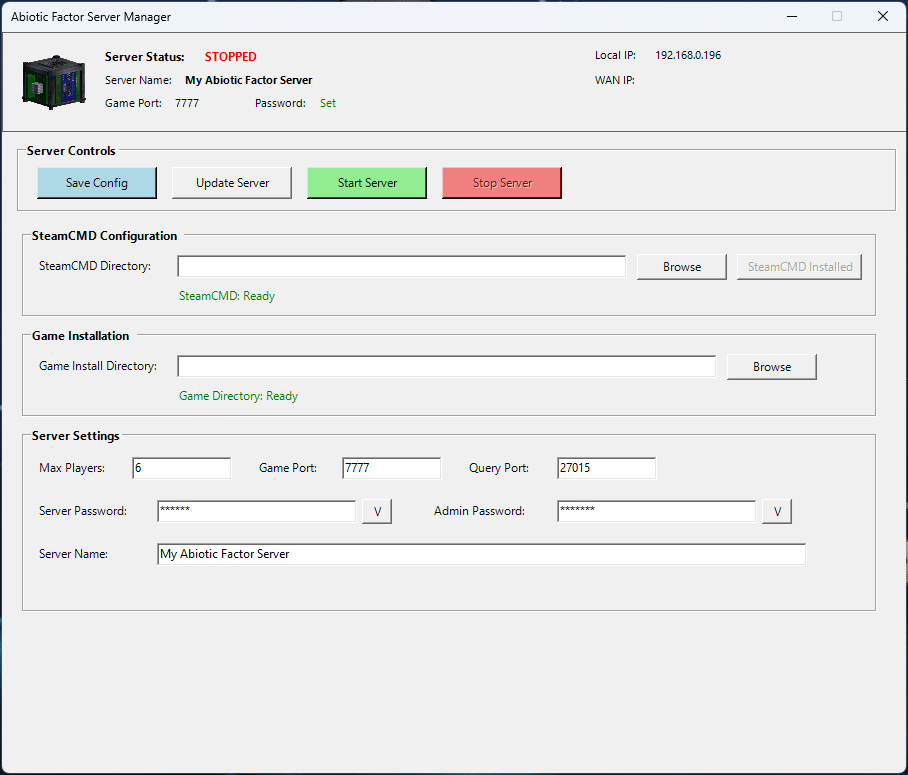
A PowerShell GUI application to manage an Abiotic Factor dedicated server using SteamCMD.
|
|
|
|
## Dependencies
|
|
- **PowerShell 5.1+** (built into Windows 10/11)
|
|
- **.NET Framework 4.5+** (built into Windows)
|
|
- No external installations required
|
|
|
|
## Main Functions
|
|
|
|
| Function | What it does |
|
|
|----------|--------------|
|
|
| `Load-Config` | Loads saved settings from `server_config.json` |
|
|
| `Save-Config` | Saves current settings to config file |
|
|
| `Install-SteamCMD` | Downloads and installs SteamCMD automatically |
|
|
| `Update-Server` | Downloads/updates the Abiotic Factor server via SteamCMD |
|
|
| `Start-Server` | Launches the server with configured parameters |
|
|
| `Stop-Server` | Kills the server process |
|
|
| `Browse-Directory` | Opens folder picker for SteamCMD/Install paths |
|
|
|
|
## Server Launch Parameters Used
|
|
|
|
-log -newconsole -useperfthreads -NoAsyncLoadingThread
|
|
-MaxServerPlayers=<value>
|
|
-PORT=<value>
|
|
-QueryPort=<value>
|
|
-ServerPassword=<value>
|
|
-AdminPassword=<value>
|
|
-SteamServerName="<value>"
|
|
|
|
|
|
|
|
|
|
## Configuration Saved
|
|
- SteamCMD directory path
|
|
- Game install directory path
|
|
- Max players, ports, passwords, server name
|
|
- Steam login preference (password NOT saved)
|
|
|
|
## Usage
|
|
1. Run script in PowerShell
|
|
2. Set SteamCMD directory → Click "Install SteamCMD"
|
|
3. Set Game Install Directory
|
|
4. Click "Update Server" (use Steam login if you own the game, optional)
|
|
5. Click "Start Server" to launch
|
|
6. Click "Stop Server" to shut down
|
|
|
|
|
|
|
|
## Files Created
|
|
- `server_config.json` - Settings (in script folder)
|
|
- `steam_appid.txt` - Created in server binaries folder (App ID: 2896390)
|
|
|
|
## App ID Used
|
|
**2857200 ** - Abiotic Factor Dedicated Server
|
|
|
|
## Notes
|
|
|
|
- Server executable path: `[InstallDir]\AbioticFactor\Binaries\Win64\AbioticFactorServer-Win64-Shipping.exe`
|
|
|
|
# Steam Guard Support Explained
|
|
|
|
## What is Steam Guard?
|
|
Steam Guard is Valve's two-factor authentication (2FA) system that protects Steam accounts from unauthorized access. When logging in from a new device or after clearing credentials, Steam requires a verification code.
|
|
|
|
## How the Script Handles Steam Guard
|
|
|
|
### Current Implementation
|
|
The script **does not automatically handle** Steam Guard codes. Instead, it:
|
|
|
|
1. **Opens SteamCMD in its own console window** when you click "Update Server"
|
|
2. **You interact directly with SteamCMD** to enter any required codes
|
|
3. **SteamCMD handles the authentication** normally, just like running it manually
|
|
|
|
### What You'll See
|
|
When logging in with Steam Guard enabled, SteamCMD will display:
|
|
|
|
This account is protected by a Steam Guard mobile authenticator.
|
|
Please confirm the login in the Steam Mobile app on your phone.
|
|
|
|
OR -
|
|
Please enter the authentication code from your email:
|
|
|
|
|
|
### What You Need To Do
|
|
1. **Mobile Authenticator**: Approve the login in the Steam Mobile App
|
|
2. **Email Codes**: Type the code sent to your email directly into the SteamCMD window
|
|
3. **The code entry happens in the SteamCMD console window**, not the GUI
|
|
|
|
### Why No Automatic Popup?
|
|
- SteamCMD manages its own authentication flow
|
|
- Creating a popup would overcomplicate the process
|
|
- Manual entry is more reliable and secure
|
|
- Your password is never stored (for security)
|
|
|
|
## Workflow Example
|
|
|
|
1. You check "Use Steam Login"
|
|
|
|
2. Enter username and password
|
|
|
|
3. Click "Update Server"
|
|
|
|
4. SteamCMD window opens
|
|
|
|
5. SteamCMD says "Please enter authentication code"
|
|
|
|
6. You type the code from your email/app
|
|
|
|
7. Login completes, server downloads
|
|
|
|
|
|
## Steam Guard Options
|
|
|
|
| Type | How it works in script |
|
|
|------|----------------------|
|
|
| **Mobile Authenticator** | Approve on phone, SteamCMD proceeds automatically |
|
|
| **Email Codes** | Type the 5-digit code into SteamCMD window |
|
|
| **Steam Guard Disabled** | No extra steps, logs in directly |
|
|
|
|
## Security Notes
|
|
- ✅ Passwords are **NOT saved** to the config file
|
|
- ✅ Username is saved for convenience
|
|
- ✅ Steam Guard codes are never seen or stored by the script
|
|
- ✅ You type codes directly into SteamCMD, not the GUI
|
|
|
|
## Troubleshooting Steam Guard
|
|
|
|
**Problem**: "Waiting for confirmation... OK" but nothing happens
|
|
- **Solution**: Check your Steam Mobile App - you may need to approve there
|
|
|
|
**Problem**: "Please enter authentication code" but no code arrives
|
|
- **Solution**: Check spam folder, or use mobile authenticator instead
|
|
|
|
**Problem**: Login times out repeatedly
|
|
- **Solution**: Close SteamCMD, wait 30 seconds, try again
|
|
|
|
## Example SteamCMD Output with Steam Guard
|
|
|
|
Logging in using username/password.
|
|
Logging in user 'username' [U:1:12345678] to Steam Public...
|
|
This account is protected by a Steam Guard mobile authenticator.
|
|
Please confirm the login in the Steam Mobile app on your phone.
|
|
|
|
Waiting for confirmation...OK
|
|
Waiting for client config...OK
|
|
Waiting for user info...OK
|
|
|
|
|
|
## Recommended Setup
|
|
For the smoothest experience with the script:
|
|
1. **Use Steam Mobile Authenticator** (approve with one tap)
|
|
2. **Stay logged into the Steam client** on your PC
|
|
3. **Check "Remember me"** when logging in via SteamCMD (it caches your login)
|
|
|
|
## Note
|
|
The script cannot bypass Steam Guard - this is intentional for account security. You must have access to your email or mobile device to authenticate. |